
Set up your Mac: permissions and the fn key
- Works on Mac only
The first time you open DuckyHelper, a short setup walks you through four steps. One of them turns on the four switches your Mac needs.
Film
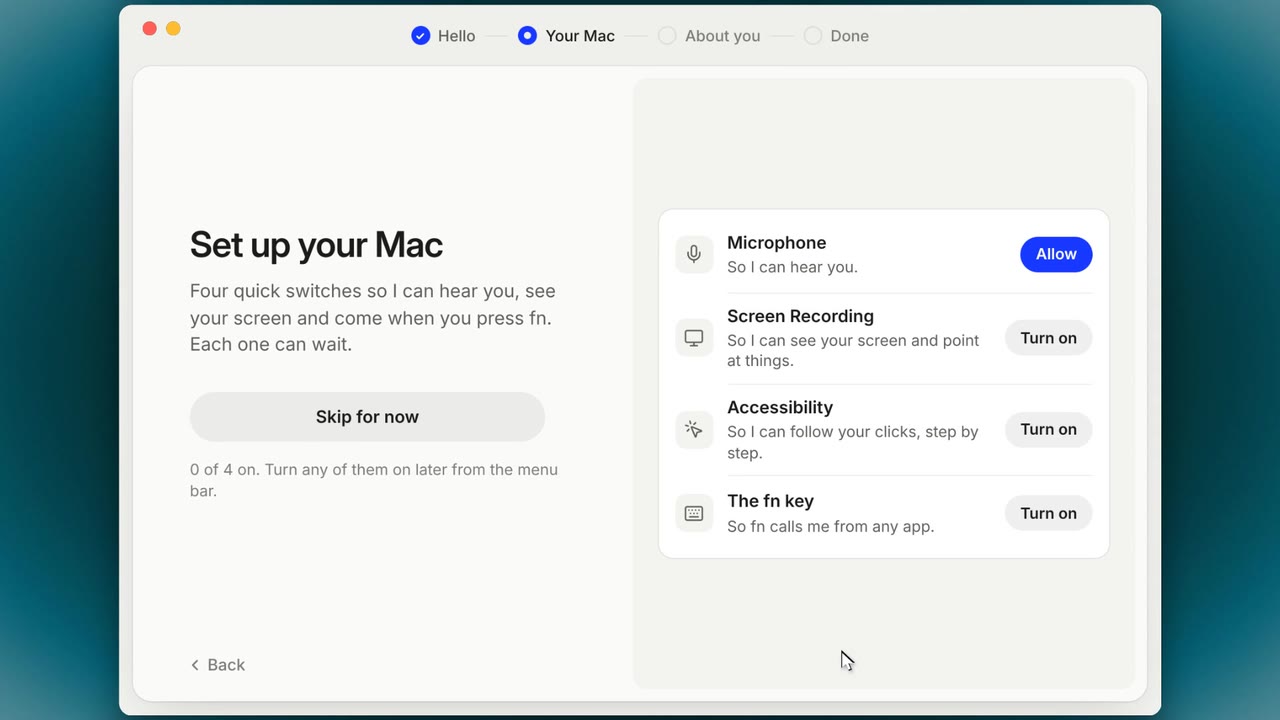
Steps#
- Say hello and sign in.
- Turn on your Mac's switches. A helper sits over System Settings: "Drag DuckyHelper to the list above to allow…".
- Try the fn key. The step follows your real key press.
- Ducky asks a few questions to get to know you. Then you are done.
The four switches#
| Switch | Why Ducky needs it |
|---|---|
| Microphone | Hear you when you talk to Ducky. |
| Screen recording | See what you are looking at. |
| Accessibility | Follow your clicks and typing in tutorials. |
| Input monitoring | The fn key, from any app. |
Check them later#
- Click the duck in the menu bar and choose Permissions… (or open Settings > Permissions).
- Each switch shows a checkmark, or "(not granted)".
- Open Setup Window… lists the four with live checkmarks and closes itself when all are on.
Tips#
- Screen recording works after you quit and reopen DuckyHelper. The setup step says so.
- Run the setup again any time: menu bar duck > Show Onboarding Again.
- While DuckyHelper runs, fn no longer opens the emoji picker. For emoji, press control command space.
Limits#
- A switch is on but not working? Remove DuckyHelper from that list with the minus button, add it again, then quit and reopen DuckyHelper.
Related#
Something here out of date? Write to support@duckyhelper.com.