
Eddy's start page and tabs
- Works on Mac only
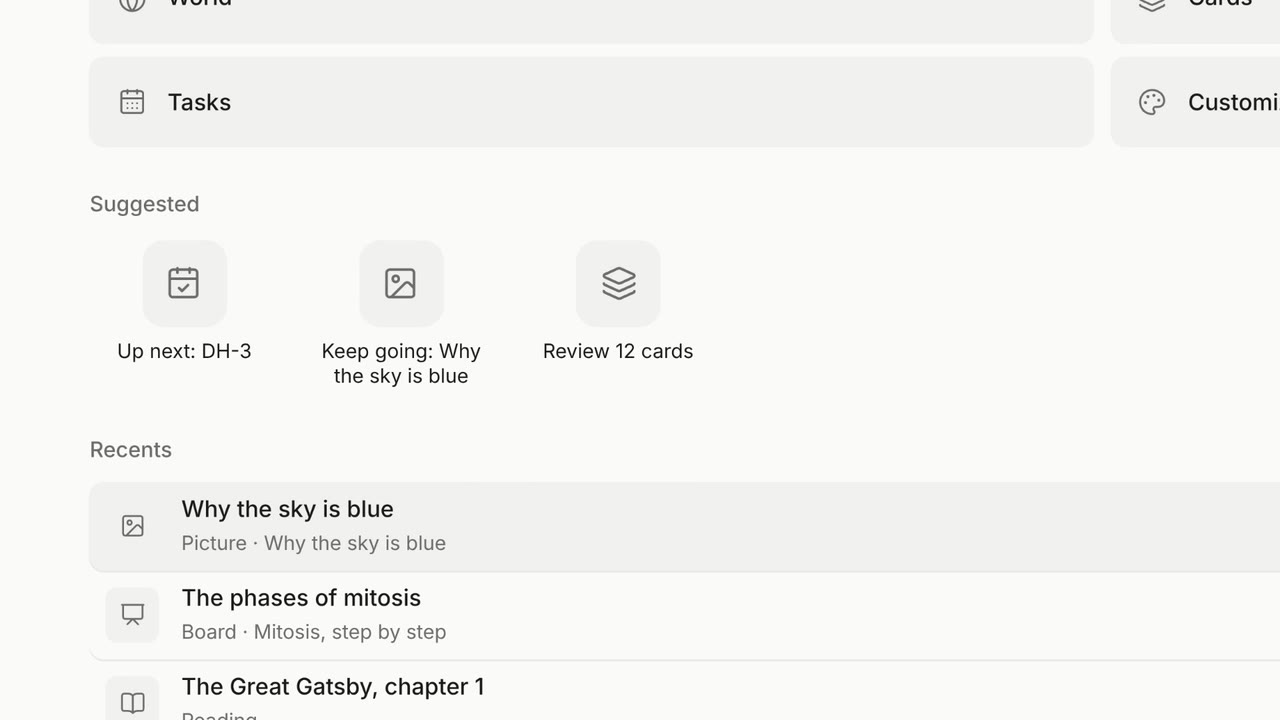
Every lesson with Eddy is a tab, like in a browser. A new tab opens the start page: your tools, what to do next, and your recent lessons.
Film
Steps#
- Click the duck in the menu bar and choose Open Dashboard. Eddy is first in the sidebar.
- Pick a tool or a suggestion, or just ask in the bar at the bottom.
- Open a new lesson with New tab (⌘ T). Close one with ⌘ W.
Tools#
On the start page.
| Keys | What it does |
|---|---|
| ⌘ O | Open a file: your homework. |
| ⌘ B | Whiteboard. |
| ⌘ E | Research. |
| ⌘ K | Blackboard. |
| ⌘ I | Picture. |
Suggested and Recents#
- Also on the start page: World, Cards, Tasks and Customize Eddy.
- Suggested: your next task, the lesson to keep going on, "Review N cards", and your sites.
- Recents: your lessons. Kept lessons have a play button to watch them again.
- The rail on the right shows everything in this session as small pictures.
More films#
Short films that also show this, each carried by one learner's question. They play with sound.
Related#
Something here out of date? Write to support@duckyhelper.com.